Platform feature update completed on March 20th, 2025
New
Sales Tax
Settings
August 11, 2026
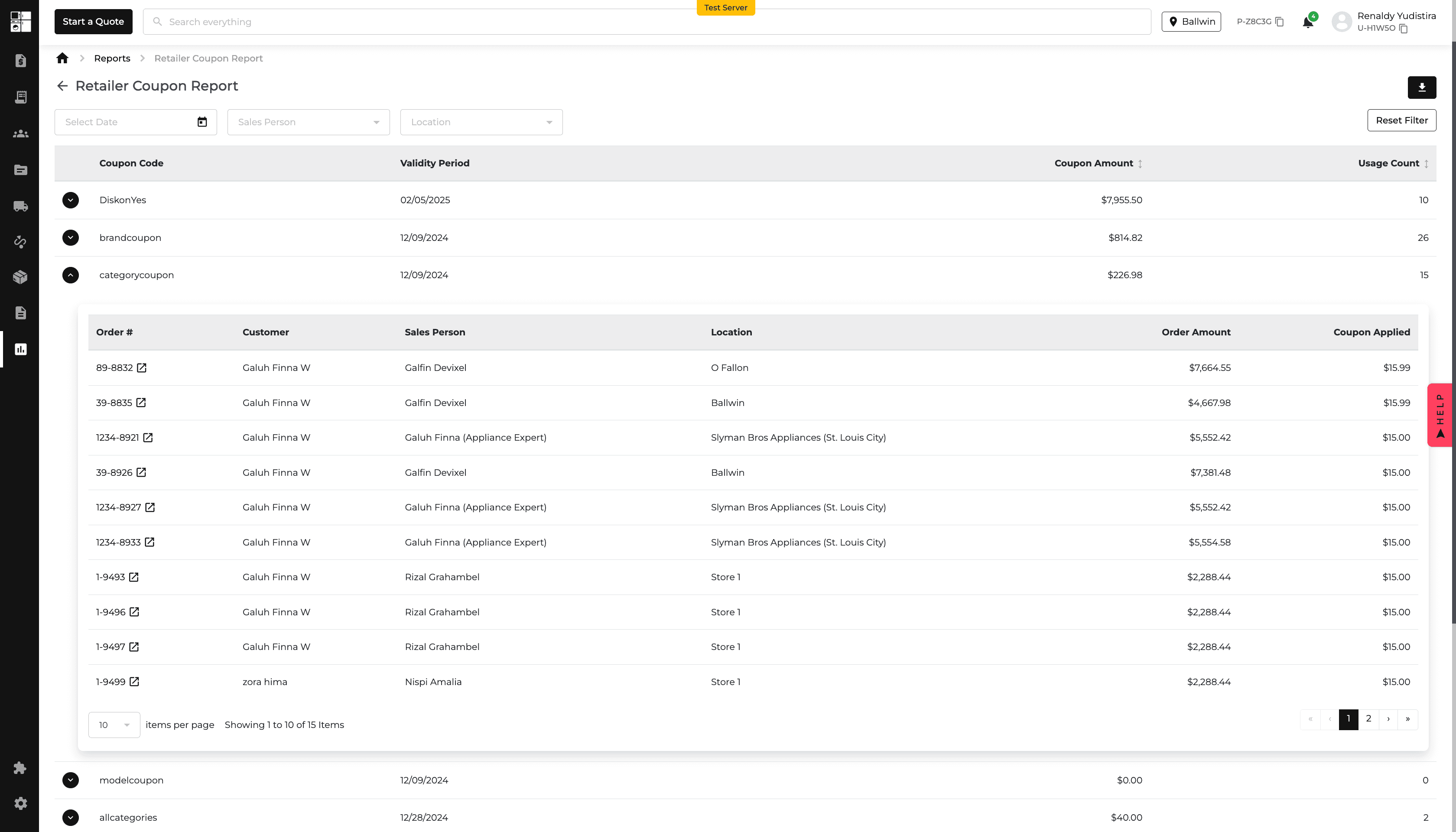
1. Introduction of the "Retailer Coupons" Reportππ
π Whatβs New?
β π New "Retailer Coupons" Report
Find it under the Reports section, right below the Instant Rebate Report.
β π Smart Filtering Options
Date Range: Set a start & expiration date.
Salesperson: Filter by active or archived sales person.
Location: View coupon data by store locations.
Reset Filters: Quickly clear selections to start fresh!
β π₯ Easy Export Options
Download your report in PDF, CSV, or Excel with one click.
β π Coupon Report
Coupon Code β Unique codes for each coupon.
Validity Period β See start & expiration dates (hover tooltip for details!).
Coupon Amount β Sort by value (high/low).
Usage Count β See total redemptions (sort by newest/oldest).
Totals Section β Get a quick summary of coupon amounts & usage at the bottom of the report.
β Detailed Coupon Insights
Order: View the order details where the coupon was applied.
Customer: Identify the customer who used the coupon.
Salesperson: See which sales representative facilitated the transaction.
Location: Find out the store location where the coupon was redeemed.
Order Amount: Check the total amount of the order after the coupon application.
Coupon Applied: Review the specific coupon used in the transaction.
π Now you can track, analyze, and manage retailer coupons effortlessly! Try it out today! π
β

β
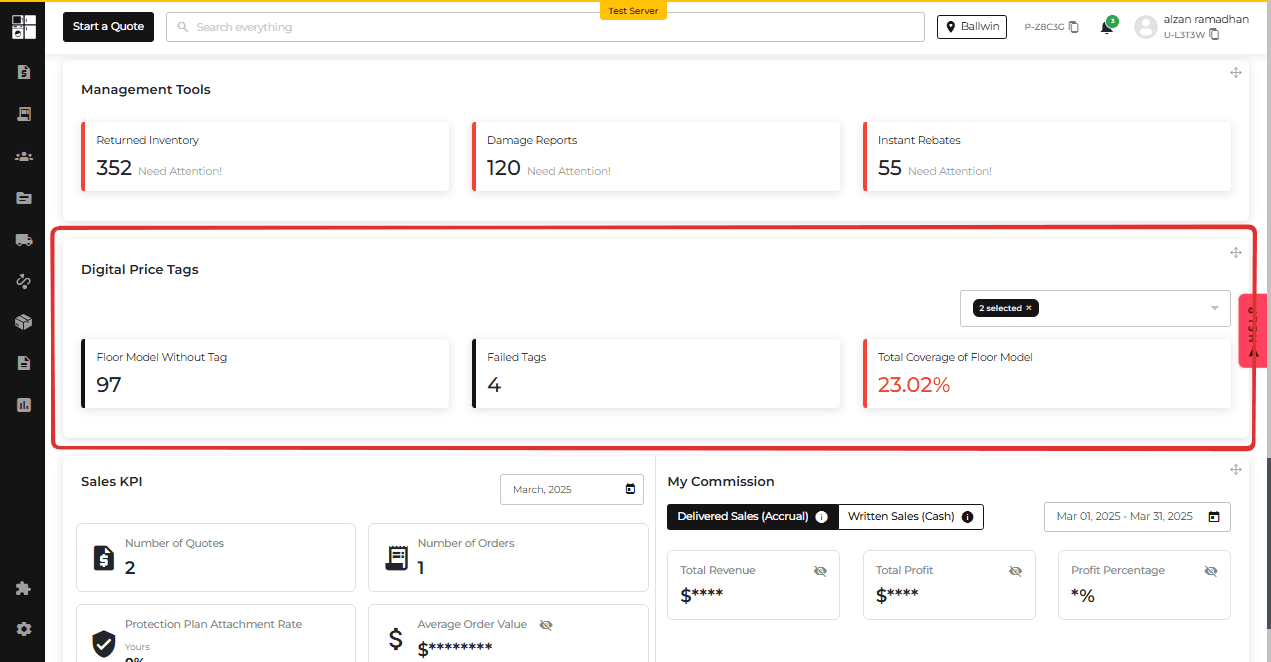
2. π·οΈ New Digital Price Tags Widget is Here! π
π What's New?
Weβve added a Digital Price Tags widget to your dashboard for quick insights into your storeβs tagging status!
β Auto-Filtered to Your Store β No need to adjust filters; the data updates based on your store location.
β Key Data Points at a Glance:
Floor Models Without Tags β See how many display items still need tagging.
Failed Tags β Track issues with tag updates.
Total Coverage % β Red (0-99%) means missing tags, while green (100%) means full coverage!
Now, you can monitor and improve price tag accuracy without extra stepsβright from your dashboard! π
β

β
3. π New Update: Edit Item Conditions Like a Pro!
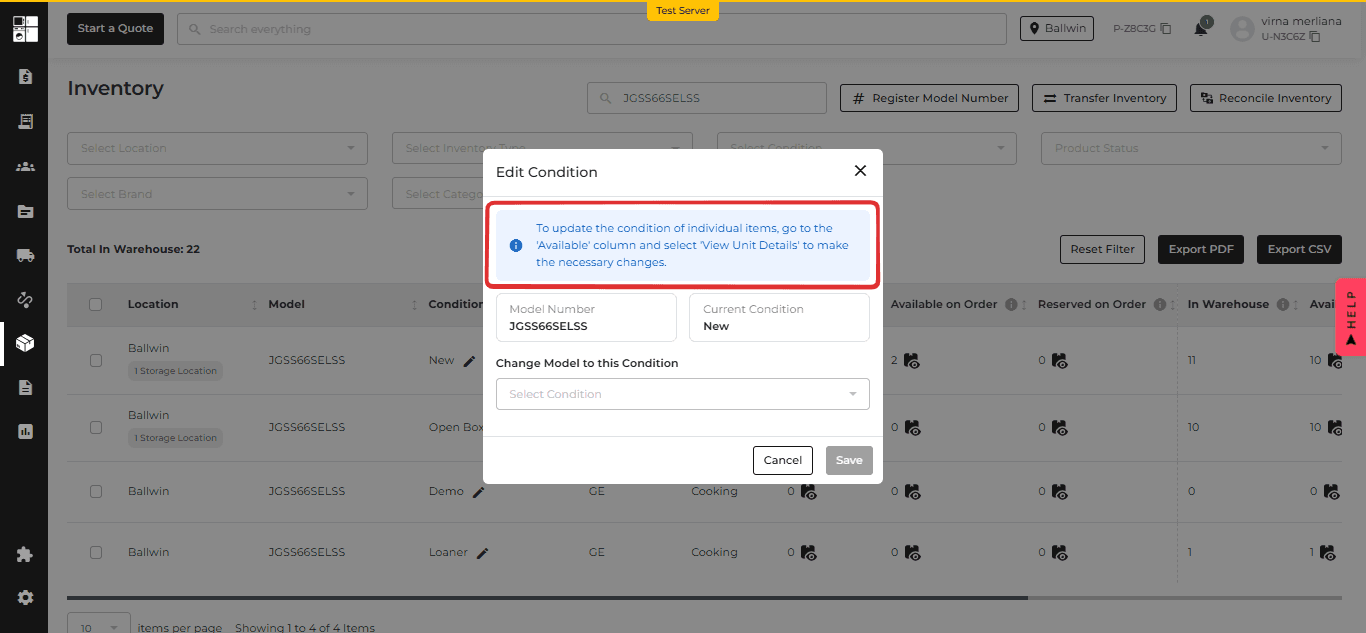
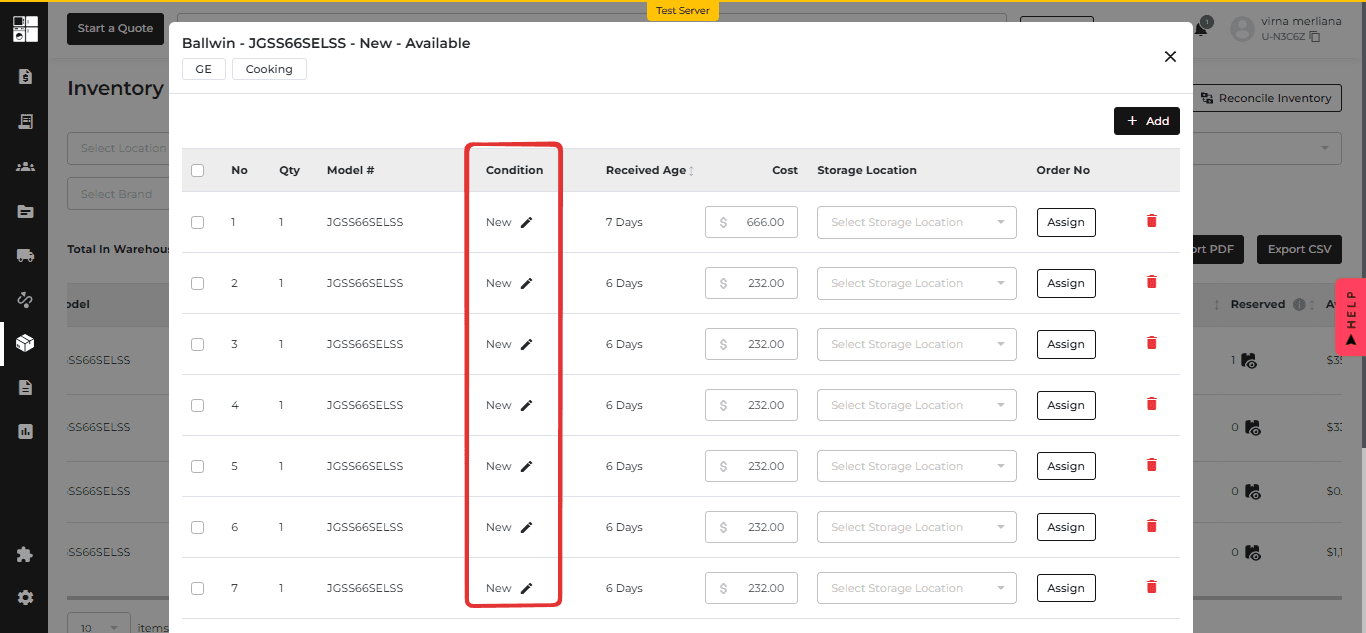
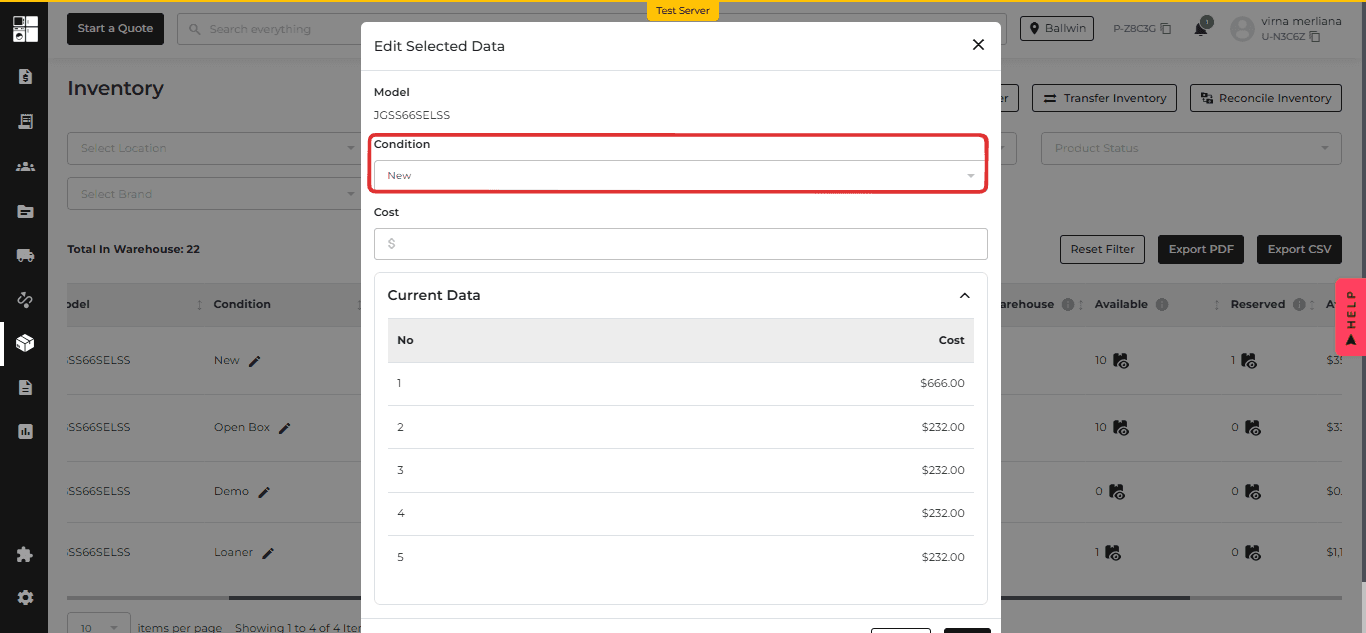
Managing inventory just got way smarter. Before, changing an itemβs condition meant updating every available unit. Not anymore! Now, you can tweak conditions one by oneβor in bulk if you want.
π§ Whatβs New?
β β οΈ Heads-up Alert! β When editing in bulk, youβll see a friendly reminder:
"To update the condition of individual items, go to the 'Available' column and select 'View Unit Details' to make the necessary changes."
β π New "Condition" Column! β Now every item has its own condition field next to "Model #." Just click the βοΈ and update it instantly!
β π¦ Bulk Editing, But Smarter! β Select only the items you want and update them all at onceβno accidental changes!
β π Everything Stays Synced! β Your updates will automatically show in π exports, π reports, and π stock movement logs.
Try it out and keep your inventory crystal clear! β¨π
β

β

β